I’m working on a large project on Crowdin Enterprise and though I’m experienced in 12 CAT Tools, I find it hard to understand how Save and Approve features work.
When I press ATL+Enter, sometimes the segment is not approved. Or when I make a change, I can’t approve it unless I save it first. Also, sometimes it doesn’t approve the current seg but moves to the next one.
Anyone can help me understand how this thing works? For now, I’m working on an MTPE project and my role is Proofreader.
Which one is the well-known from Studio option “Confirm & move to the next unconfirmed segment”?
In the Crowdin Enterprise Editor, saving and approving are two separate actions. Ctrl+Enter saves the text in the translation field as a translation, and Alt+Enter approves a translation that has already been saved.
That’s why Alt+Enter sometimes seems to do nothing. If you’ve edited the text and haven’t saved it yet, Alt+Enter won’t approve anything, because your edit isn’t a saved translation yet. Please save the edit with Ctrl+Enter first, then approve it with Alt+Enter. If you haven’t changed anything, Alt+Enter approves the translation you’ve selected in the translations list, or the top one if none is selected.
Whether the Editor moves on after saving or approving depends on the “Automatically move to next string” option. When it’s on, the Editor approves the current string and jumps straight to the next one, so it can look as if the next string got the approval. You can confirm by going back to the previous string and checking its status.
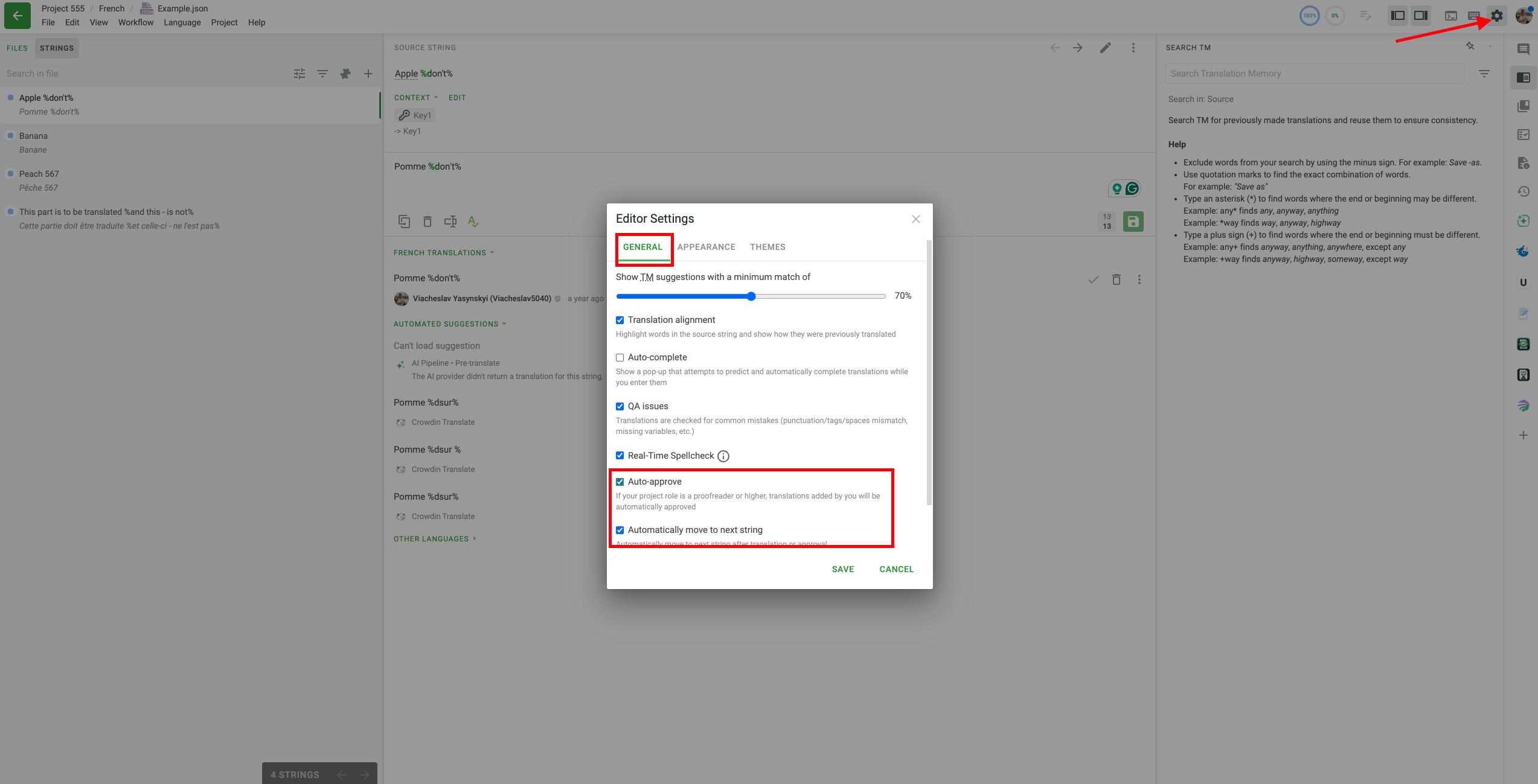
The closest match to “Confirm & move to the next unconfirmed segment” is a combination of two settings. Please click the settings icon in the upper-right corner of the Editor, open the General tab, and turn on “Auto-approve” and “Automatically move to next string”. Because you’re a Proofreader, everything you save with Ctrl+Enter is then approved straight away and the Editor moves to the next string, so it takes one keystroke instead of two. To go through only the strings that still need your approval, please filter the string list to show translated strings that aren’t approved yet.
So, when I make a change to the string, I have to SAVE it first (which moves the cursor to the next segment), then go back to the previously saved segment and approve it?
No, you don’t need to go back to the previous string. When “Auto-approve” is on, Ctrl+Enter saves your edit and approves it in one step. If “Automatically move to next string” is also on, the Editor then opens the next string.
These are personal Editor settings, so every user has them, whatever their project role. To open them, please click the gear icon (Editor Settings) in the top-right corner of the Editor, next to the keyboard icon, and go to the General tab.